Visual C# Guide
Simple Applications
Sudoku Application
Fractal Explorer
SFML Graphics Guide
Taking C# Further


Visual C# (Windows) Guide
SFML Graphics: Raising Events
The SFML canvas that we have created is added to our form programmatically. We have also written event handling code in the class. As it stands, that means that the code we are writing in the form that contains our canvas doesn’t have access to the events that are taking place inside our custom panel.
This becomes an issue if there are actions we want to take on our main form that are triggered by things that are done completely within the canvas. For example, we might write code that allows a drawing item to be added to the canvas by clicking the mouse in the location where we would like it to be drawn. If we wanted to update the main form with some relevant information at this point, we would need to be able to handle some event on the main form.
The approach shown here is to define and raise our own custom event in a way that it can be triggered and handled in the main form.
Start by creating a class for the EventArgs. I put this in the same file as the SFMLCanvas class, defining it after the last } of the class, before the end of the namespace.
    internal class CanvasClickedEventArgs : EventArgs
    {
        public string? Button { get; set; }
        public string? Action { get; set; }
    }
What you see here are properties. These are the values we want to be able to access when the main form receives the event. I have gone for strings in this case to indicate the button being pressed and the action being taken. You would choose properties that cover the things you need to know.
The event is added to the class as you might do a field, outside of any methods.
public event EventHandler<CanvasClickedEventArgs>? CanvasClicked;
The following events in the Canvas were changed to include code to raise this event at certain times and with specific EventArgs,
        protected override void OnMouseDown(MouseEventArgs e)
        {
            CanvasClickedEventArgs ee = new CanvasClickedEventArgs();
            if (e.Button == MouseButtons.Left)
            {
                ee.Button = "Left";
                ee.Action = "No action";
                for (int i = 0; i < Shapes.Count; i++)
                {
                    if (Shapes[i].GetGlobalBounds().Contains(
                        new Vector2f((float)e.X, (float)e.Y)))
                    {
                        SelectedItem = i;
                        ee.Action = "Start Drag";
                        Dragging = true;
                    }
                }
            }
            else if (e.Button == MouseButtons.Right)
            {
                ee.Button = "Right";
                ee.Action = "No action";
            }
            else
            {
                ee.Button = "Neither right nor left";
                ee.Action = "Incomprehensible";
            }
            CanvasClicked?.Invoke(this, ee);
        }

        protected override void OnMouseMove(MouseEventArgs e)
        {
            CanvasClickedEventArgs ee = new CanvasClickedEventArgs();
            if (Dragging && e.Button == MouseButtons.Left)
            {
                ee.Button = "Left";
                ee.Action = "Dragging";
                float dx = Shapes[SelectedItem].GetGlobalBounds().Width / 2;
                float dy = Shapes[SelectedItem].GetGlobalBounds().Height / 2;
                Shapes[SelectedItem].Position = new Vector2f((float)e.X - dx,
                    (float)e.Y - dy);
                this.Refresh();
            }
            else
            {
                ee.Button = "Not relevant";
                ee.Action = "Waving the mouse about";
            }
            CanvasClicked?.Invoke(this, ee);
        }
Back in the main form, I added a StatusStrip to the form. I made 4 StatusLabels on the strip.
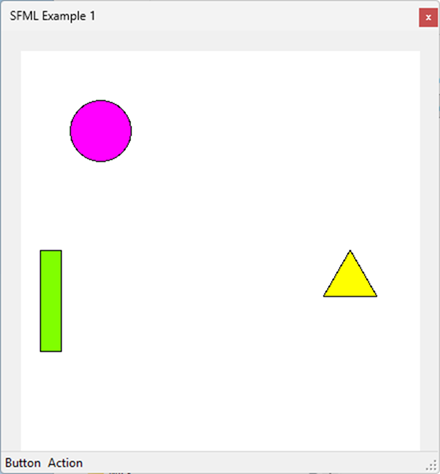
I set the text for the first and third labels to Button & Action and named the other two tslButton and tslAction.
You need to add the following event handling subroutine to the main form,
        private void HandleBar(object sender, CanvasClickedEventArgs e)
        {
            tslButton.Text = e.Button;
            tslAction.Text = e.Action;
        }
Finally, you add the event handler to the form, just after the line that adds the canvas to the controls.
Canvas.CanvasClicked += new EventHandler<CanvasClickedEventArgs>(HandleBar);
I didn’t raise the event from the MouseUp handler because, in this example, there isn’t enough time to see it happening. You could do this and process code in the main form if you wanted to.