Visual C# Guide
Simple Applications
Sudoku Application
Fractal Explorer
SFML Graphics Guide
Taking C# Further



Visual C# (Windows) Guide
SFML Graphics: Using A Panel As A Canvas
It is possible to draw your SFML content directly onto a form’s surface. We can create a reusable component to use for drawing if we inherit the built-in Panel class. This has some functionality built into it that will save time and effort.
Add a new class to your project and name it SFMLCanvas.cs.
This is a basic version of how you might have your canvas to get things going. Comments have been added to explain in detail the lines of code that are there.
internal class SFMLCanvas : Panel
{
    #region Fields

    // The render window is the place where the SFML content is being drawn
    private RenderWindow RendWind;
    // The background colour for the canvas. You need to write "SFML.Graphics" to avoid
    // confusion with the existing Color structure
    private SFML.Graphics.Color BackgroundColor;
    // A list to store the shapes that are being drawn - Shape is an abstract class from
    // which all specific shapes are inherited
    private List<SFML.Graphics.Shape> Shapes;

    #endregion

    #region Constructor
    public SFMLCanvas(int Width, int Height)
    {
        // Assign the values of the arguments to the fields
        this.Width = Width;
        this.Height = Height;
        this.BackgroundColor = SFML.Graphics.Color.White;
        Shapes = new List<SFML.Graphics.Shape>();
        // This line makes the Panel the drawing surface for the SFML components
        RendWind = new RenderWindow(this.Handle);

    }
    #endregion

    #region Methods

    // Method for adding a shape to the drawing list
    public void AddShape(Shape s)
    {
        Shapes.Add(s);
        // Causes the canvas to be redrawn when a shape is added
        this.Refresh();
    }

    // Method for clearing the drawing list
    public void Clear()
    {
        Shapes.Clear();
        // Refreshing the canvas because a change has been made
        this.Refresh();
    }

    // This is the method that contains our drawing logic
    private void Draw()
    {
        // Iterate through the list of shapes and draw them one at a time
        foreach (Shape s in Shapes)
        {
            RendWind.Draw(s);
        }
    }

    #endregion

    #region Event Handlers

    // This event is triggered when the canvas is drawn or refreshed
    protected override void OnPaint(PaintEventArgs e)
    {
        RendWind.DispatchEvents();
        // Clears the drawing surface and fills it with the background colour
        RendWind.Clear(BackgroundColor);
        // Calls our custom Draw method
        Draw();
        // Causes the items we have drawn to the canvas to be displayed
        RendWind.Display();
    }


    protected override void OnPaintBackground(PaintEventArgs e)
    {
        // This method is needed to prevent parent method from running
    }

    #endregion

}
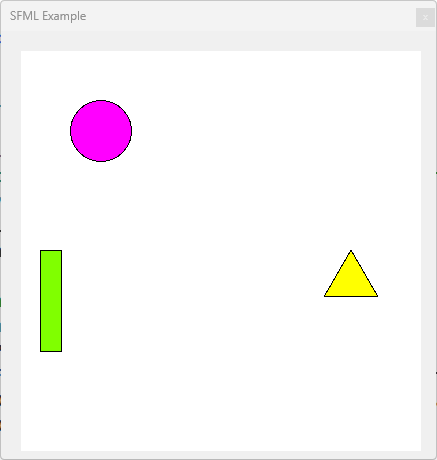
To test this out, you will need to add some code to the main form. Add the following using statements.
using SFML.Graphics;
using SFML.System;
Next, amend the constructor of the form so that it has the following test code,
        public Form1()
        {
            InitializeComponent();

            // Create an instance of the canvas and add to the form
            SFMLCanvas Canvas = new SFMLCanvas(400, 400);
            Canvas.Location = new Point(20, 20);
            this.Controls.Add(Canvas);

            // Define a circle
            CircleShape circle = new CircleShape(30.0f);
            circle.Position = new Vector2f(50.0f, 50.0f);
            circle.FillColor = SFML.Graphics.Color.Magenta;
            circle.OutlineColor = SFML.Graphics.Color.Black;
            circle.OutlineThickness = 1.0f;

            // Define a rectangle
            RectangleShape rectangle = new RectangleShape(new Vector2f(20.0f, 100.0f));
            rectangle.Position = new Vector2f(20.0f, 200.0f);
            rectangle.FillColor = new SFML.Graphics.Color(128, 255, 0, 255);
            rectangle.OutlineColor = SFML.Graphics.Color.Black;
            rectangle.OutlineThickness = 1.0f;

            // Define a polygon - (triangle)
            CircleShape polygon = new CircleShape(30.0f, 3);
            polygon.Position = new Vector2f(300.0f, 200.0f);
            polygon.FillColor = SFML.Graphics.Color.Yellow;
            polygon.OutlineColor = SFML.Graphics.Color.Black;
            polygon.OutlineThickness = 1.0f;

            // Add the three shapes to the drawing list for the canvas
            Canvas.AddShape(circle);
            Canvas.AddShape(rectangle);
            Canvas.AddShape(polygon);
        }
It would be a good idea at this point to add some buttons to the form and use them to add shapes in random places on the canvas.