Visual C# Guide
Simple Applications
Sudoku Application
Fractal Explorer
SFML Graphics Guide
Taking C# Further



Visual C# (Windows) Guide
SFML Graphics: Adding Text
The text drawing features of SFML require access to a font file that must be loaded in the program. I took a copy of the arial.ttf file on the PC and copied it into the solution folder. Set the Copy to Output folder property to always. This will ensure that the file is available to the running program.
Add a field to the SFMLCanvas class to store the font.
private SFML.Graphics.Font f;
Load the font inside the constructor method,
f = new SFML.Graphics.Font("arial.ttf");
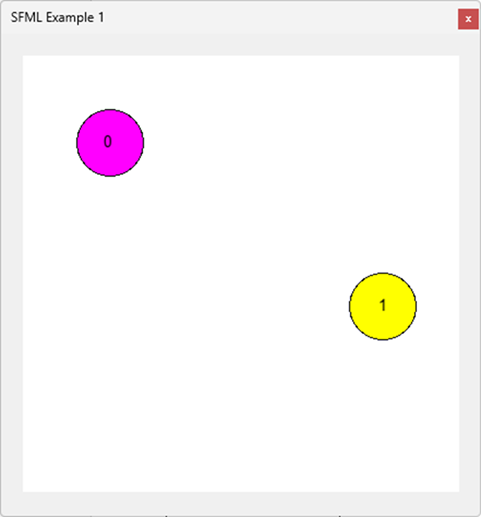
I decided to draw some text on my shapes and so I defined some text objects based on numeric characters and did it in my Draw method. This positions the numbers nicely for circles.
        private void Draw()
        {
            Text text;
            Vector2f offset, offset2;
            // Iterate through the list of shapes and draw them one at a time
            for (int i = 0;i< Shapes.Count; i++)
            {
                text = new Text(f, i.ToString());
                text.FillColor = SFML.Graphics.Color.Black;
                text.Position = Shapes[i].Position;
                offset = new Vector2f(Shapes[i].GetGlobalBounds().Width/2,
                    Shapes[i].GetGlobalBounds().Height / 2);
                offset2 = new Vector2f(text.GetGlobalBounds().Width / 2,
                    text.GetGlobalBounds().Height / 2);
                text.Position += offset;
                text.Position -= offset2;
                text.CharacterSize = 14;
                RendWind.Draw(Shapes[i]);
                RendWind.Draw(text);
            }
        }
You are not required to do the code this way. You could manage your text objects in a similar way to your shapes.